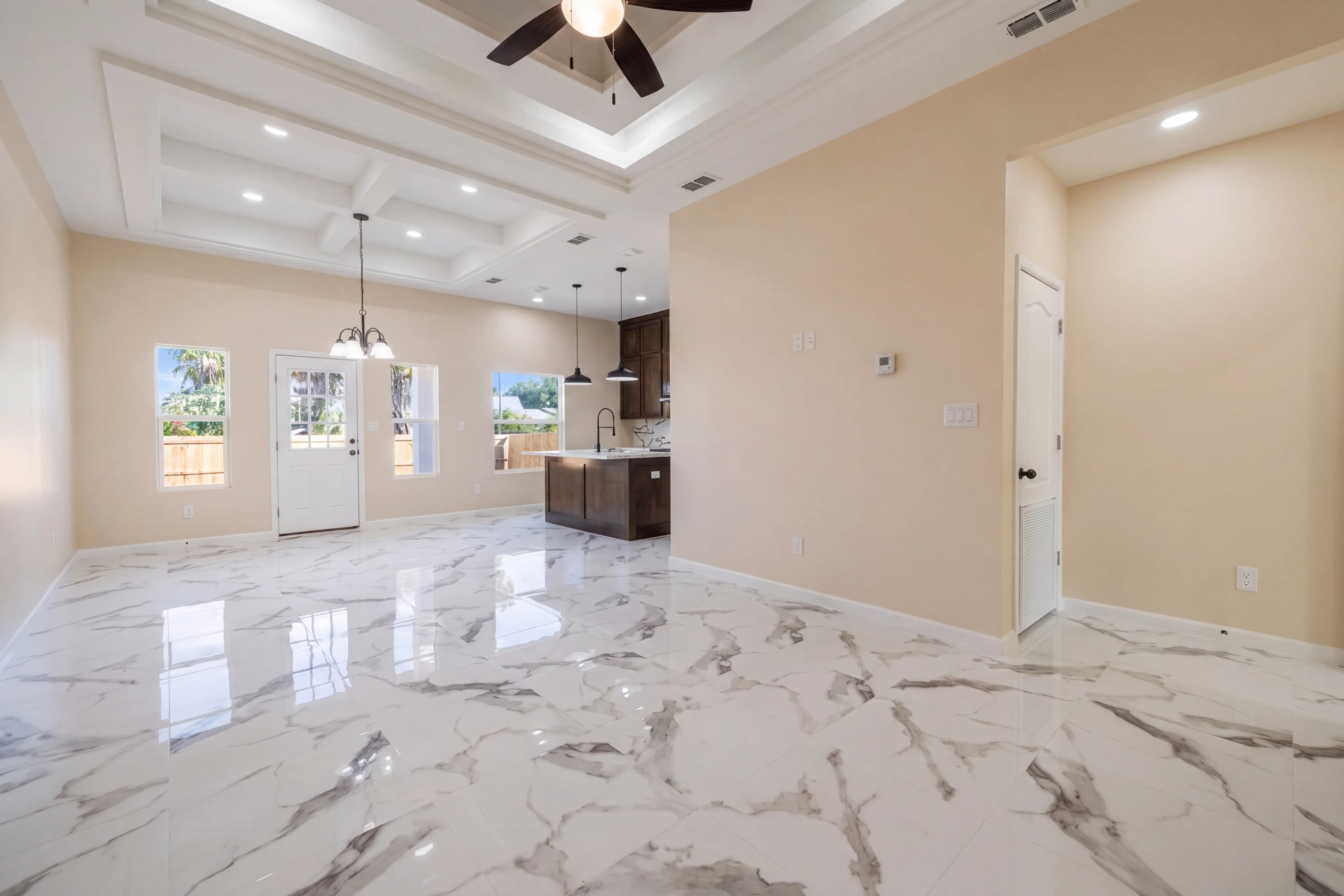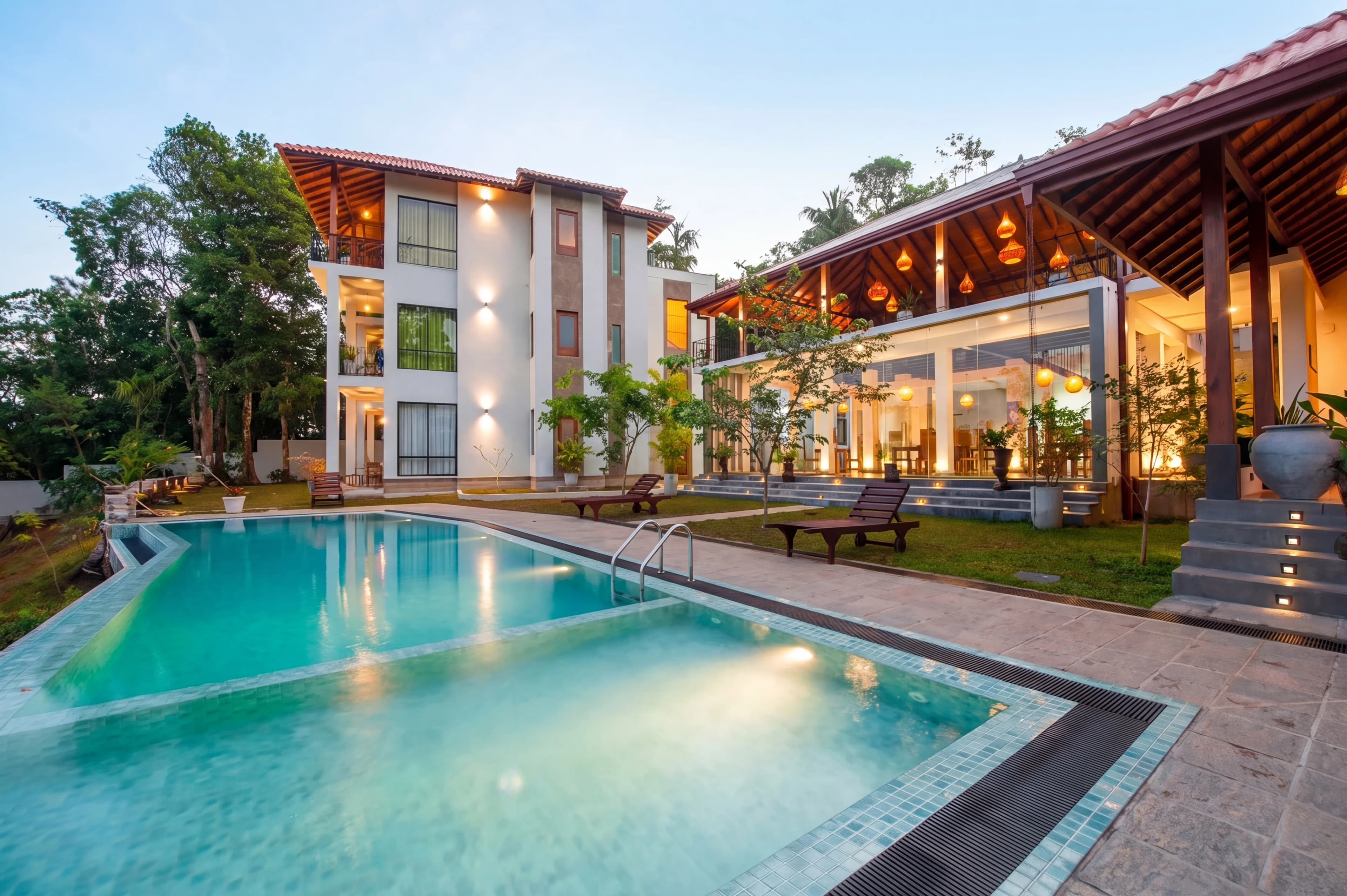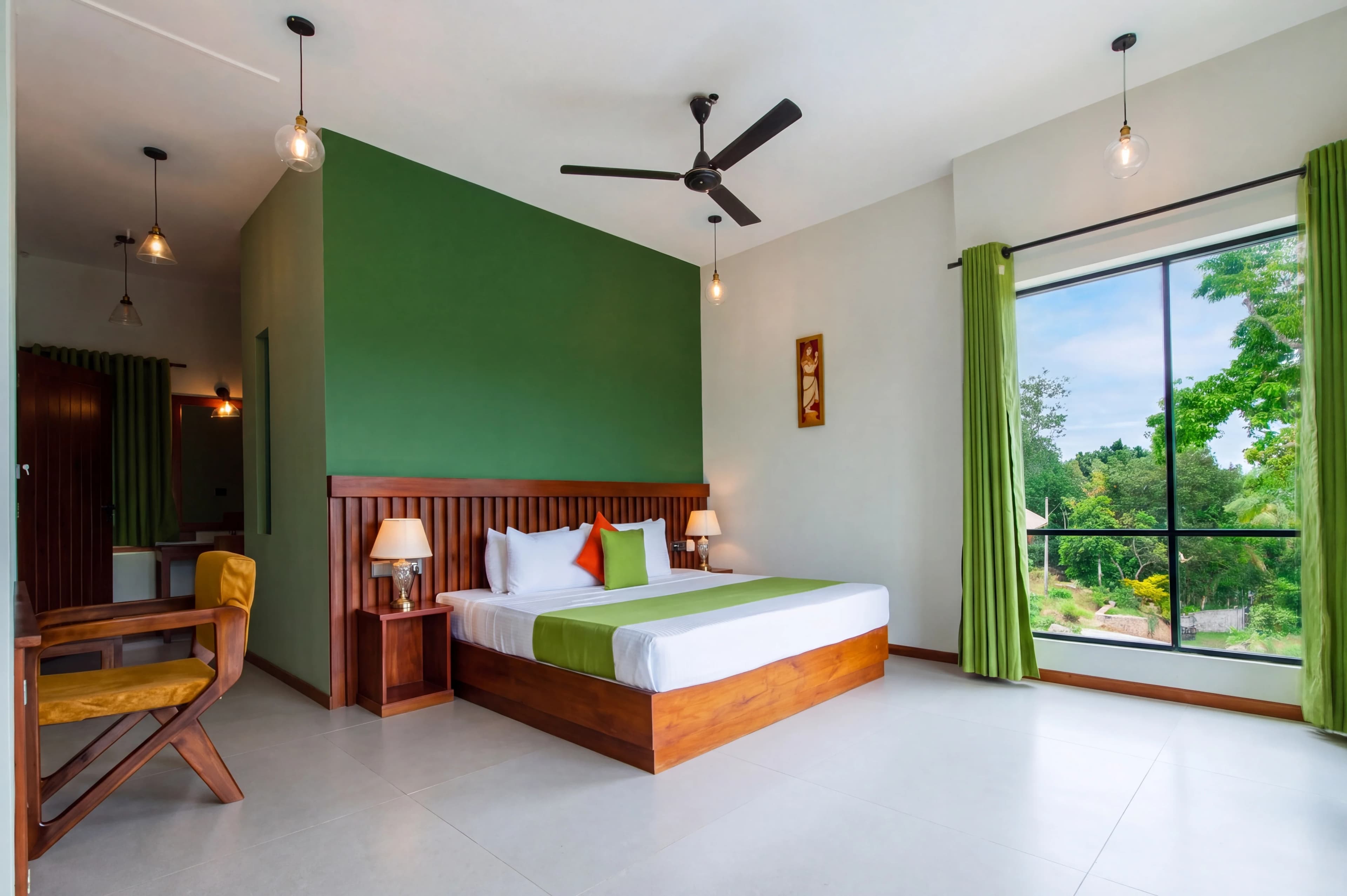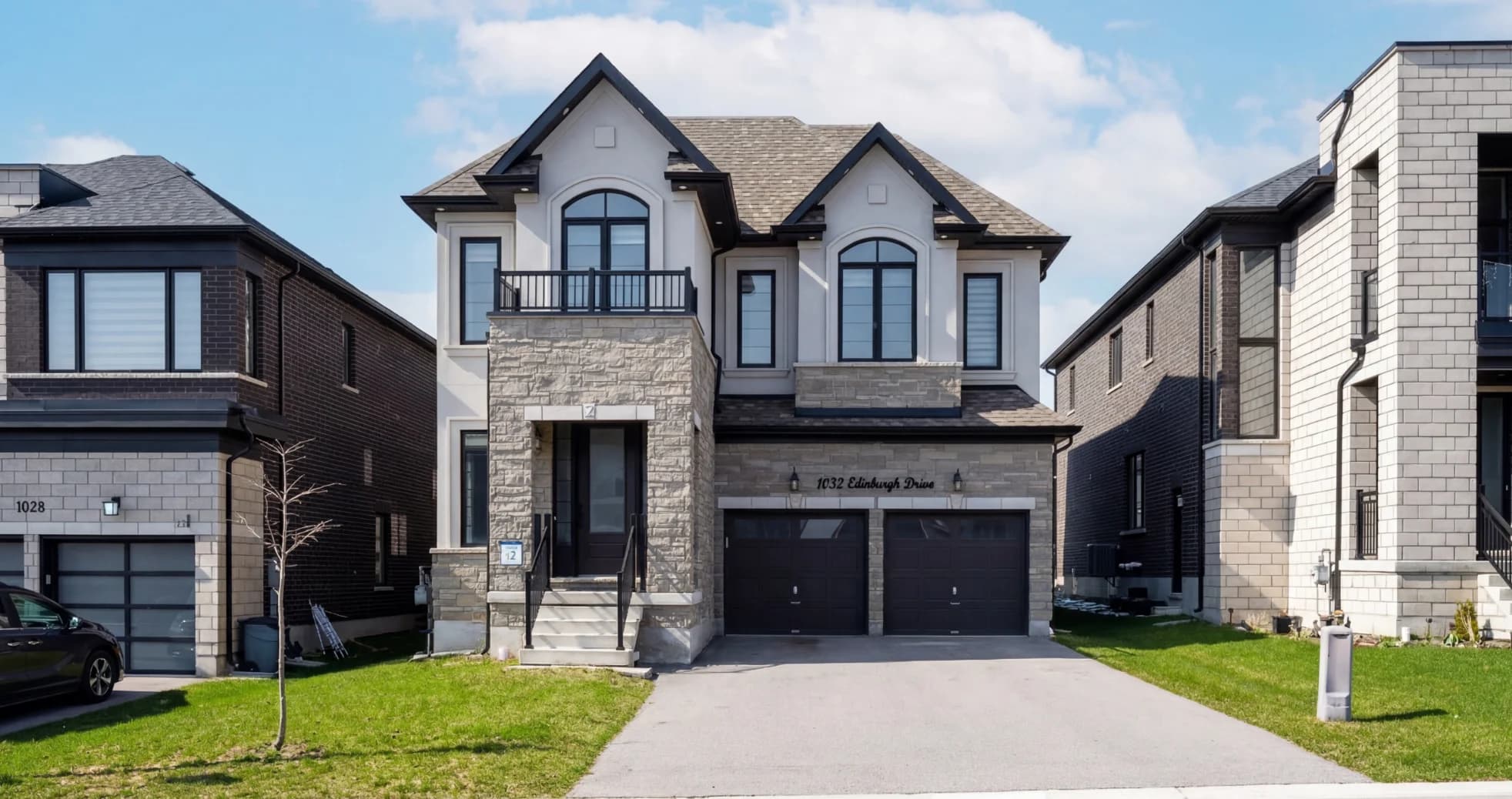
Wide-angle lenses are a real estate photographer's best friend — until they aren't. The same 16mm or 24mm lens that makes a small bedroom look spacious also makes walls lean inward, floors bow outward, and tall ceilings appear to converge at a vanishing point. Left uncorrected, perspective distortion makes professionally shot photos look amateur, and worse, makes rooms feel smaller and less inviting than they are.
Perspective correction is a non-negotiable step in professional real estate photo editing. This guide covers every type of distortion, how to prevent it at capture, how to fix it in post, and how AI tools now handle most of this automatically in seconds.
What Causes Perspective Distortion in Real Estate Photography
Wide-angle lenses are the culprit — not bad technique. In real estate photography, a wide zoom (10–24mm on crop, 16–35mm on full frame) is essential for capturing small kitchens, bathrooms, and bedrooms in a single frame. But these focal lengths come with inherent optical compromises:
- Barrel distortion: The lens curves straight lines outward toward the frame edges. Walls bow, countertops arch slightly, and the room looks like it was shot through a fisheye. More pronounced at the widest focal lengths.
- Converging verticals (keystoning): When you tilt the camera up to capture a full room or exterior, parallel vertical lines (walls, door frames, building edges) appear to lean inward and meet at a point above the frame. Rooms look unstable; buildings look like they're falling backward.
- Horizontal distortion: When the camera rotates slightly on its horizontal axis — a common handheld error — floors, ceilings, and countertops appear tilted at an angle.
Each type of distortion has a different cause, a different visual signature, and a different fix. Professional real estate editing addresses all three.
Why It Matters for Listings
Buyers don't consciously notice corrected perspective — they just feel that the room looks right. What they do notice is distortion: a room with leaning walls feels claustrophobic, a kitchen with a bowed countertop looks cheap, an exterior with converging lines looks like a poorly shot vacation photo.
The practical impact:
- Perceived space: Corrected verticals make rooms feel taller and more open. Barrel-corrected wide shots look more natural and spacious.
- Professionalism signal: Listing agents and sellers judge photo quality immediately. Distorted photos communicate that the photographer didn't finish the job.
- MLS and portal standards: Portals like Zillow and Realtor.com don't automatically reject distorted photos, but buyers scroll past them. Click-through rates and save rates drop measurably on listings with obvious lens distortion.
The Three Types of Perspective Distortion — and How to Fix Each
1. Barrel Distortion
What it looks like: Straight lines near the frame edges curve outward. The center of the image looks normal, but walls, door frames, and countertops near the edges appear to bow.
When it's worst: Focal lengths below 20mm (crop) or 28mm (full frame), especially from close distances.
How to fix it:
In Lightroom, open the Lens Corrections panel and check Enable Profile Corrections. If Lightroom recognizes your camera and lens (it does for almost all modern gear), it automatically applies the manufacturer's distortion profile and removes barrel distortion in one click. This should be part of your standard import preset for every shoot.
In Photoshop, use Filter → Lens Correction → Auto Correction. Check the Geometric Distortion box. For lenses not in the database, use the Custom tab and drag the Remove Distortion slider leftward (negative values remove barrel distortion).
AI approach: AI real estate editors detect barrel distortion automatically and apply lens profile corrections in batch — no manual profile selection per shot required.
2. Converging Verticals (Keystoning)
What it looks like: Walls, door frames, or building edges lean inward toward the top of the frame. The effect is most pronounced in wide-angle interior shots taken from standing height and on exterior shots of tall buildings.
When it's worst: Camera tilted upward more than a few degrees; tall rooms; exterior shots of multi-story buildings.
How to fix it:
In Lightroom, open the Transform panel (formerly Lens Corrections → Upright). For most shots, clicking Vertical in the Upright section automatically detects and corrects converging verticals. For complex shots where the auto detection misses, use Guided Upright: draw two lines along elements that should be vertical, and Lightroom calculates the exact correction needed.
In Photoshop, use Edit → Transform → Perspective. With the image on a layer, drag the top corners outward until verticals appear parallel. Alternatively, use Filter → Lens Correction → Custom and adjust the Vertical Perspective slider.
Important caveat: Correcting converging verticals crops into the image and introduces empty triangular areas at the corners. Budget extra canvas or shoot with headroom — leave 10–15% extra space at the top and sides to account for the crop.
3. Horizontal Tilt
What it looks like: The camera was slightly rotated on its axis. Floors look like they slope uphill. Ceilings and countertops angle across the frame.
When it's worst: Handheld shots; tripod not leveled; uneven floor surfaces.
How to fix it:
In Lightroom, the Level option in the Upright panel is designed for this. It analyzes the image and rotates to level horizontal lines. The Crop & Straighten tool also works well — drag the straighten line along a floor, ceiling, or counter that should be horizontal.
In Photoshop, use the Ruler Tool, draw a line along the element that should be level, then go to Image → Image Rotation → Arbitrary — Photoshop auto-fills the correction angle.
Prevention tip: Use a two-axis bubble level on your hot shoe. Five seconds of setup eliminates this problem entirely at capture.
Manual vs. AI Perspective Correction: Side-by-Side
| Factor | Manual (Lightroom/Photoshop) | AI-Powered | |---|---|---| | Setup time | Import preset + profile setup per camera/lens | None | | Per-image time | 1–3 min (Guided Upright + fine-tune) | Seconds (batch) | | Barrel distortion | Profile-based, accurate | Automatic | | Converging verticals | Upright Auto or Guided — usually accurate | Automatic | | Complex shots | Guided Upright handles tricky cases | May need manual review | | Batch processing | Sync settings across shoot | True batch, one-click | | Consistency | Varies — manual fine-tuning differs per image | Uniform across shoot | | Best for | Custom/complex corrections | High-volume, full shoot |
For a 25-image listing shoot, manual perspective correction typically adds 30–60 minutes to the editing workflow. AI correction handles the same shoot in under a minute.
Preventing Distortion at Capture
The best perspective correction is the one you don't have to do. A few shooting habits dramatically reduce distortion at the source:
Keep the camera sensor parallel to the subject. For interiors, this means shooting from chest height (approximately 4–5 feet), not from standing height looking slightly upward. For exteriors, position yourself far enough back that you don't need to tilt up to capture the full building.
Use a tripod with a ball-leveling head. A leveled tripod eliminates horizontal tilt entirely and makes it easier to control vertical camera angle.
Shoot slightly wider and crop. Rather than tilting the camera to capture the full room, use a wider focal length and shoot level — then correct barrel distortion and crop. This preserves perspective geometry better than a tilted shot.
Longer focal lengths distort less. A 24mm shot from across the room often shows less distortion than a 16mm shot from the doorway, even if the field of view is similar. If your property has space, use a slightly longer focal length and step back.
When to Over-Correct (and When Not To)
A common mistake is over-correcting perspective until the image looks artificially "correct." Real rooms have perspective — that's how human eyes work. The goal isn't geometric perfection; it's natural, clean, and professional.
Signs of over-correction:
- Walls flare outward at the top (over-adjusted verticals)
- The image looks stretched or distorted in a different direction
- The room looks unnatural to the human eye
A good rule: after correction, vertical lines should be parallel and the image should match what a person standing in the room would see — no more, no less.
Perspective Correction in Your Editing Workflow
Perspective correction should happen early in the editing process, before exposure adjustments and color work. The order matters because perspective crops the image, and you want to do final color and tone work on the final framed shot.
Recommended workflow order:
- Lens profile correction (barrel distortion) — import preset
- Upright / perspective correction (verticals, horizontals)
- Crop to final composition
- Exposure, HDR, and color correction
- Final sharpening and export
fotolabs applies perspective correction automatically as part of AI photo processing — barrel distortion and converging verticals are corrected in the same pass as HDR blending, color grading, and style application. Upload your raw listing photos and every image comes back geometrically clean, without building a separate correction workflow.
Common Questions
Does perspective correction change room dimensions? Not meaningfully. Corrected photos show the room at its natural proportions. Distorted photos actually misrepresent dimensions — a barrel-distorted room can appear wider than it is, while a keystoned room looks smaller. Corrected photos are more accurate, not less.
Can I fix perspective in-camera? Some cameras offer in-camera perspective correction via electronic crop and tilt correction, but the quality is inferior to post-processing. Some tilt-shift lenses eliminate converging verticals optically, but they're expensive and specialized. Post-processing is the standard approach.
What if the Upright tool makes the image look worse? Upright Auto sometimes over-corrects or misidentifies lines in cluttered rooms. In these cases, use Guided Upright and manually identify the lines that should be vertical. This gives you precise control when the auto tool misreads the scene.
Perspective correction is one of those editing skills that's invisible when done right — buyers simply see a clean, professional, natural-looking room. Done wrong (or skipped entirely), distorted listing photos quietly undermine the quality of your marketing.
For agents and photographers processing high volumes of listings, fotolabs handles perspective correction automatically as part of AI photo enhancement — along with HDR processing, color correction, sky replacement, and style application. Clean geometry comes standard.
Related Articles
- HDR Photo Editing for Real Estate: How AI Delivers Perfect Results Every Time
- Real Estate Photo Editing Costs in 2026: AI vs. Manual Outsourcing vs. DIY
- Real Estate Photography Tips: Shoot MLS-Ready Listing Photos Like a Pro
- The Best AI Photo Styles for Real Estate: Bright & Airy, Luxury, Warm, and More