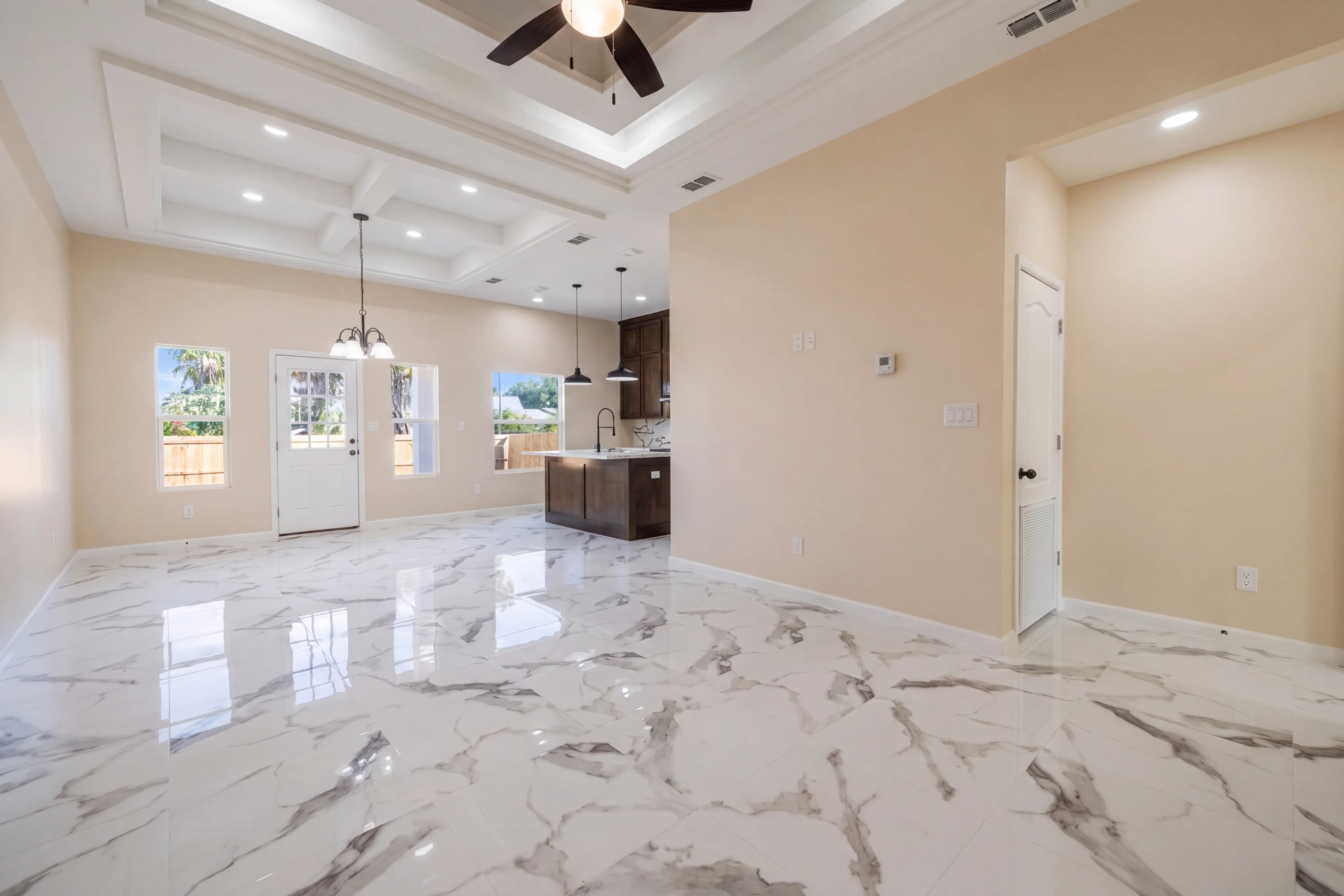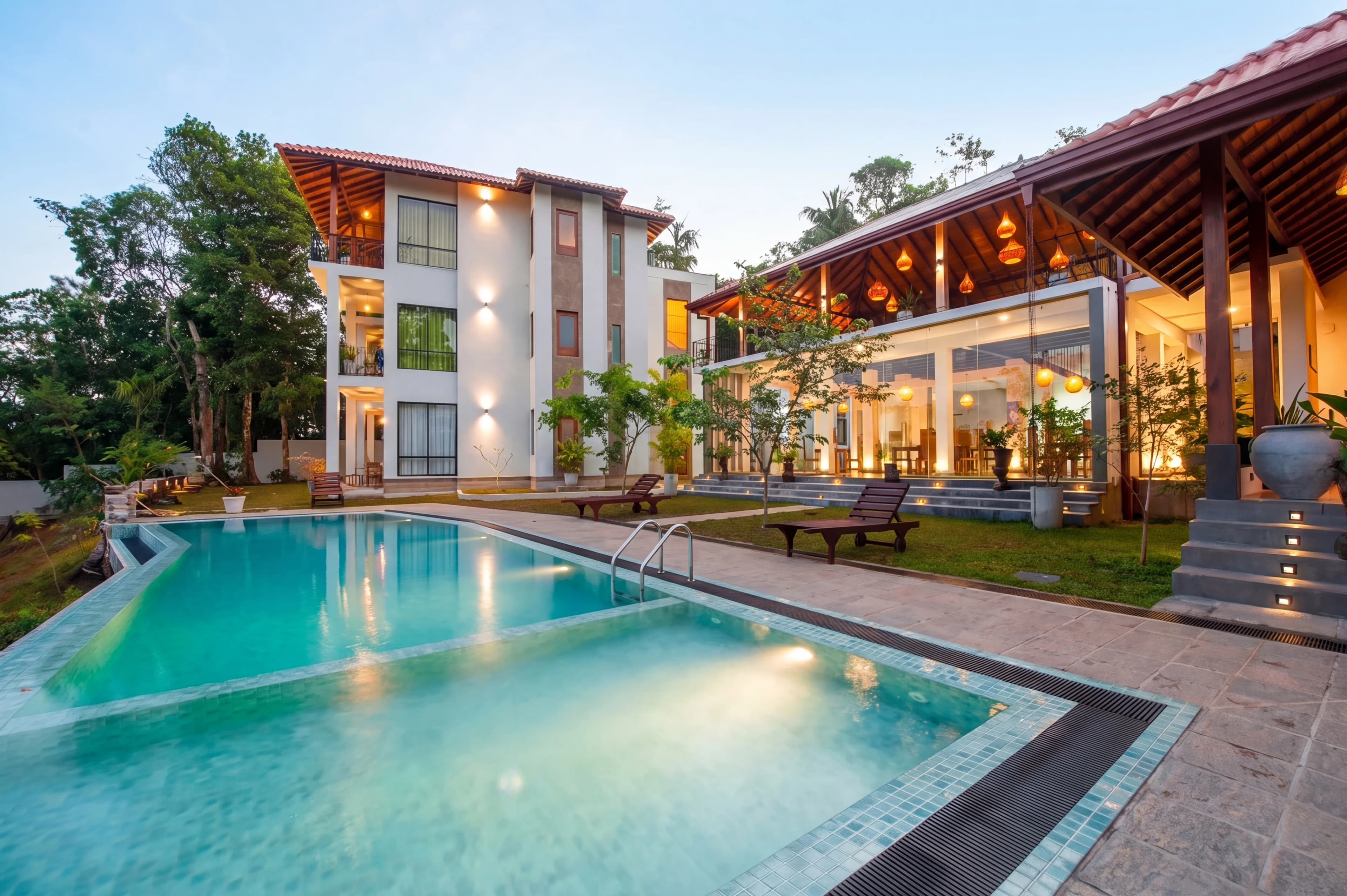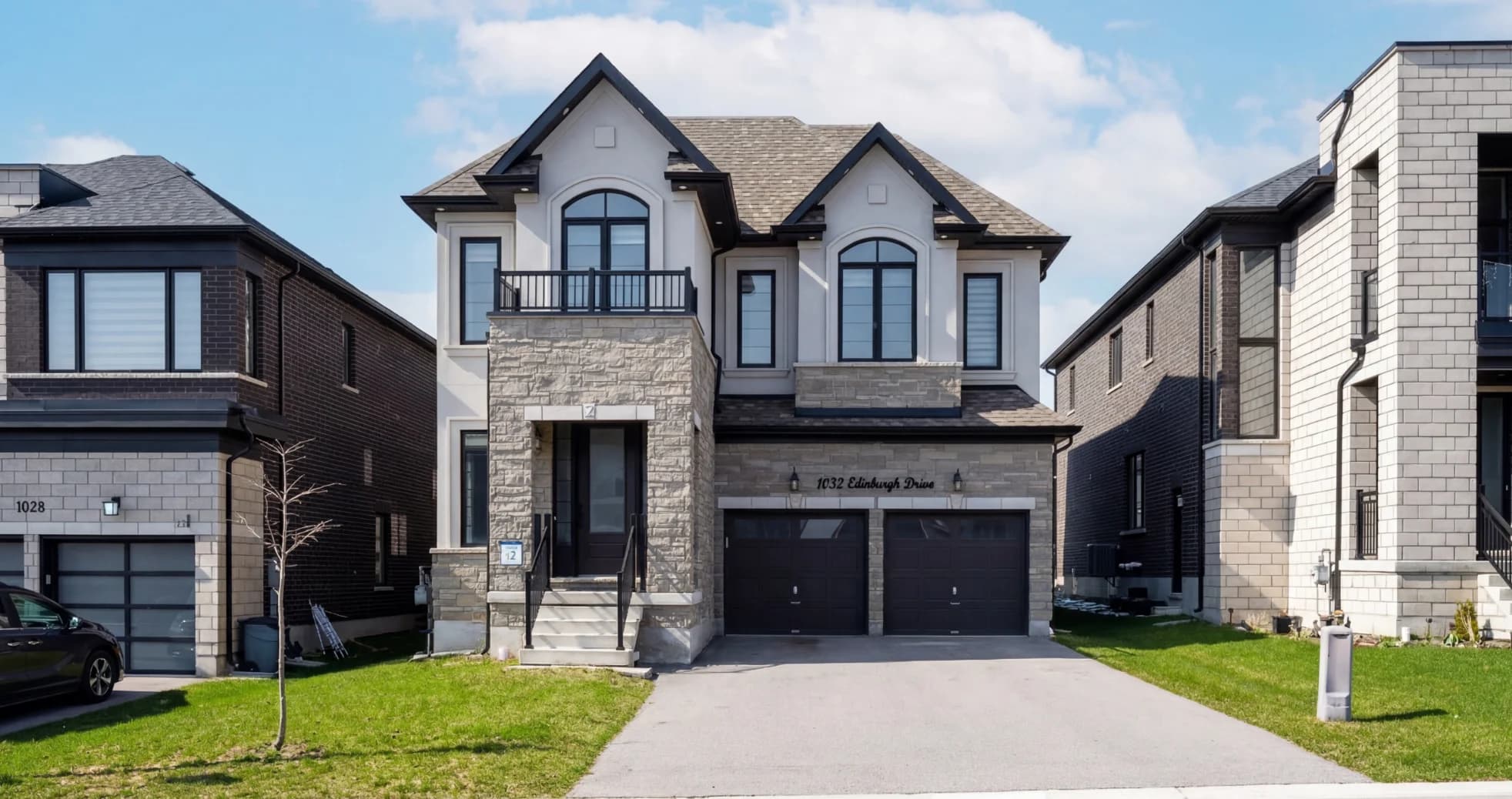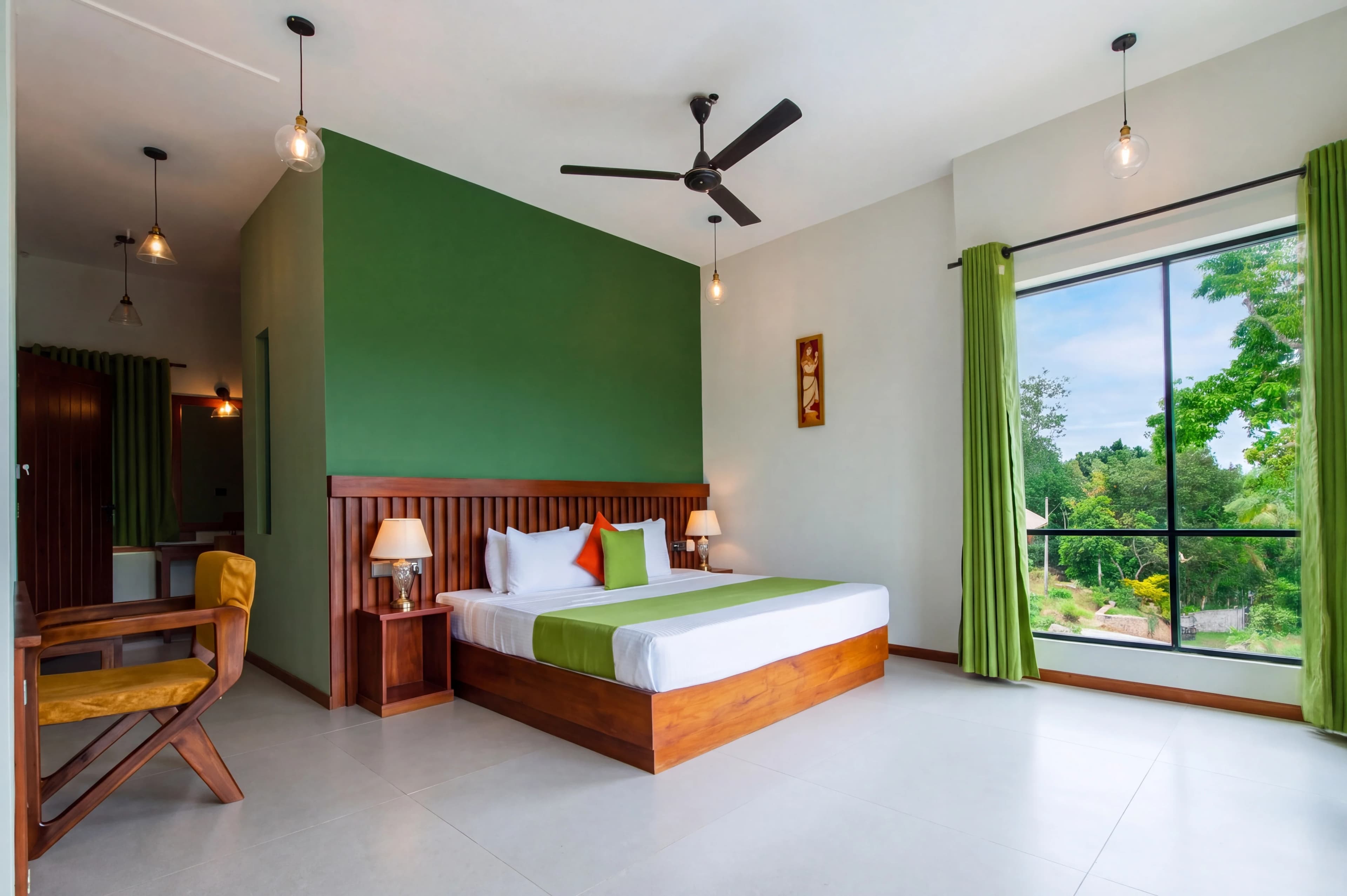
Walk into a listing, take 30 photos, upload them to your MLS portal — and half the rooms look orange, one bathroom looks green, and the kitchen looks like it was shot in a different house entirely. The architecture is identical. The light is different. The camera saw it differently each time.
Color correction is the step that makes a listing feel consistent — like one cohesive property rather than a collection of unrelated rooms. It's often the least visible form of editing (when it's done right, you don't notice it at all), and the most noticeable form of editing when it's skipped.
What Color Correction Actually Fixes
Color correction in real estate photography addresses three distinct problems:
- Color casts — an unnatural tint (orange, green, blue) thrown over the entire image by artificial light sources
- White balance errors — a mismatch between what the camera captured and how the human eye would perceive the scene
- Inconsistency — rooms in the same property edited to different color temperatures, making the listing feel disjointed
Each problem has a different cause and a slightly different fix.
The Color Casts You'll See in Every Shoot
Real estate interiors are almost always lit by multiple light sources simultaneously: sunlight through windows, overhead recessed LEDs, under-cabinet lighting, floor lamps. Every light source has a different color temperature, measured in Kelvin (K).
| Light Source | Color Temperature | Cast It Creates | |---|---|---| | Incandescent / halogen bulbs | 2,700–3,200 K | Strong yellow-orange | | Warm LED (common in homes) | 2,700–3,000 K | Mild yellow | | Neutral LED | 3,500–4,000 K | Minimal cast | | Cool LED / daylight LED | 5,000–6,500 K | Blue-white | | Fluorescent (older fixtures) | 3,500–5,000 K | Green tint | | Overcast daylight | 6,000–7,500 K | Cool blue | | Direct afternoon sun | 4,500–5,500 K | Neutral to warm |
The issue is that cameras must commit to a single white balance reading for each shot. When you shoot a kitchen with warm recessed LEDs and a large window letting in 6,500K daylight, no single global white balance is correct — the camera picks one, and everything else pulls toward a cast.
The Four Most Common Problem Scenarios
1. The orange living room. Incandescent or warm LED overheads with no competing daylight. Everything looks amber, especially whites and grays. Fix: pull color temperature from ~3,000K to ~5,000K.
2. The green bathroom. Older fluorescent vanity lighting. The room has a faint-to-obvious green-magenta cast. Fix: tint adjustment toward magenta (+10 to +25 tint in Lightroom), plus HSL desaturation of yellows and greens.
3. The split-light kitchen. Half the room lit by windows, half by overhead LEDs. One side looks natural, the other looks orange. Fix: local adjustments (masks or gradients) with separate white balance corrections per zone.
4. Inconsistent room-to-room color. Each room has slightly different lighting, and the camera auto-adjusted for each shot. The result is a gallery where every room is a slightly different "version" of white. Fix: standardize white balance globally across the shoot before room-specific adjustments.
White Balance: The Starting Point
Before any targeted color work, set a consistent global white balance for the shoot. For most residential interiors, 5,000–5,500K is a neutral starting point that looks natural under mixed artificial and natural light without trending warm or cold.
A reliable field technique: photograph a neutral gray or white reference card under the shoot's primary lighting as your first frame. Use that frame's color reading to set a custom white balance that gets applied as the baseline for the entire shoot.
From there, room-specific overrides handle the exceptions.
HSL Correction: When Global White Balance Isn't Enough
Once global white balance is set, individual color channels still need attention. The HSL (Hue, Saturation, Luminance) panel gives you surgical control:
- Oranges — reduce saturation to tone down incandescent glow in walls and floors; nudge hue toward red or yellow to shift orange casts
- Yellows — reduce saturation in walls and cabinetry to neutralize warm LED spill
- Greens — reduce saturation to remove fluorescent green tinting from tile, countertops, or ceiling
- Blues — moderate adjustment for window sky pulls; avoid overdoing it or the sky reads artificially teal
The goal isn't to drain color from the image — it's to make the colors accurate to what the eye would see standing in the space.
Manual Color Correction vs. AI: What Changes
Traditional color correction in Lightroom or Photoshop is a per-photo workflow: set white balance, check HSL, adjust tone, export. On a 25-photo shoot, that's 25 individual passes — each with micro-decisions that accumulate into visual inconsistency if rushed.
| Workflow | Time per Shoot | Consistency | Skill Required | |---|---|---|---| | Manual Lightroom | 45–90 min | Depends on editor | High | | Lightroom presets | 15–30 min (+ per-image tweaks) | Moderate | Moderate | | Outsourced editing | 12–24 hr turnaround | Good (if service is good) | None | | AI-powered (fotolabs) | Under 1 min | High — same model every image | None |
The consistency advantage of AI correction is significant: the same underlying model processes every photo in the shoot, so global adjustments apply uniformly without the drift that happens when a human edits 25 photos in sequence. AI-based correction also handles the local adjustments automatically — window zones, shadow areas, and mixed-light regions are detected and corrected per-region without requiring manual masking.
Consistency Across the Full Listing
The most important principle in listing photo color: every room should feel like it belongs to the same property. Buyers browse listing galleries sequentially. If the kitchen whites are slightly blue and the master bedroom whites are slightly orange, the listing reads as visually incoherent — even when buyers can't articulate why.
Consistency doesn't mean making every room identical. It means making the neutral tones (whites, grays, off-whites) consistent across all photos so the underlying color of each room reads accurately. A navy blue accent wall should look navy, not indigo in one photo and teal in another.
Practical consistency checklist:
- Set one global white balance baseline before importing into your editing app
- Use the same preset or settings profile as the starting point for every image
- Check your whites by sampling a white wall or ceiling across 3–4 photos — they should read near-identical
- Apply local corrections for problem rooms, but don't let the local fix change the overall color temperature of the room dramatically
Where Color Correction Fits in the Editing Sequence
Color correction should happen before exposure adjustments, not after. A common mistake is brightening a room first, then trying to correct color — but brightening amplifies the existing cast, making it harder to neutralize accurately.
Recommended sequence:
- Set white balance (global, per-shoot baseline)
- Neutralize color casts (HSL, color balance)
- Adjust exposure and contrast (brightness, shadows, highlights)
- Final HSL fine-tuning if the exposure changes shifted any hues
- Export / apply to remaining images in batch
How fotolabs Handles Color Automatically
When you upload a listing shoot to fotolabs, color correction is part of every AI processing job — not a separate step. The model analyzes each image for dominant light sources, neutralizes casts by region, and standardizes white balance across the set before applying your chosen style (Bright & Airy, Warm & Inviting, Luxury, etc.).
The result is a consistently-corrected gallery that looks like a single editor with full context of the property worked every image simultaneously — which is effectively what the AI is doing. Agents uploading 25-photo shoots routinely report that the color consistency alone is the most visible quality improvement over their previous workflow.
Try uploading your next listing shoot to fotolabs and compare the corrected gallery side-by-side with the originals — particularly on rooms with challenging mixed lighting.